Desktop application · Windows 10 & 11

Automatic photo processing from minutes into seconds.

Configure SmileCrop once for your clinic. Photograph the patient QR code first, then take the standard orthodontic series as usual. The app automatically detects, crops, names, and sorts the photos — locally on your computer.

14-day free trial · No credit card · Up and running in minutes

Photos stay with you Short initial setup Local processing 14-day trial
Who it's for

For orthodontists and dental clinics

Orthodontists

Orthodontic practices with routine photo documentation

Dental clinics

Clinics where photos are taken and processed every day

Assistants & hygienists

Assistants and hygienists who handle clinical photos every day

Real workflow

From camera card to patient records. In seconds.

Scroll through a real SmileCrop workflow.

Scroll down · 4 steps · at your pace
  1. 01 Unedited photos Mixed orientations and IMG_xxxx filenames.
  2. 02 Choose the folder Or just insert the card — then not even that.
  3. 03 SmileCrop processes the set Detects, crops, rotates, and names — locally.
  4. 04 Ready for patient records A complete set, sorted in seconds.
Skip the demo and see the result
Loading demo…
See it in action

Before and after

Instead of minutes of manual sorting — results in seconds.

Before
DCIM / 100CANON
JPG
IMG_4521
JPG
IMG_4522
JPG
IMG_4523
JPG
IMG_4524
JPG
IMG_4525
JPG
IMG_4526
JPG
IMG_4527
+12
···
  • Unnamed IMG_xxxx files
  • Wrong rotations, mixed formats
  • No patient assignment
After SmileCrop
Smith_John / 2026-04-20
Frontal
Right lat.
Left lat.
Occl. up.
Occl. lo.
Smile
Profile R
Profile L
Face
  • Detected, cropped and rotated to a standard dental documentation layout
  • Sorted into patient folder
  • Ready for patient records
Real result

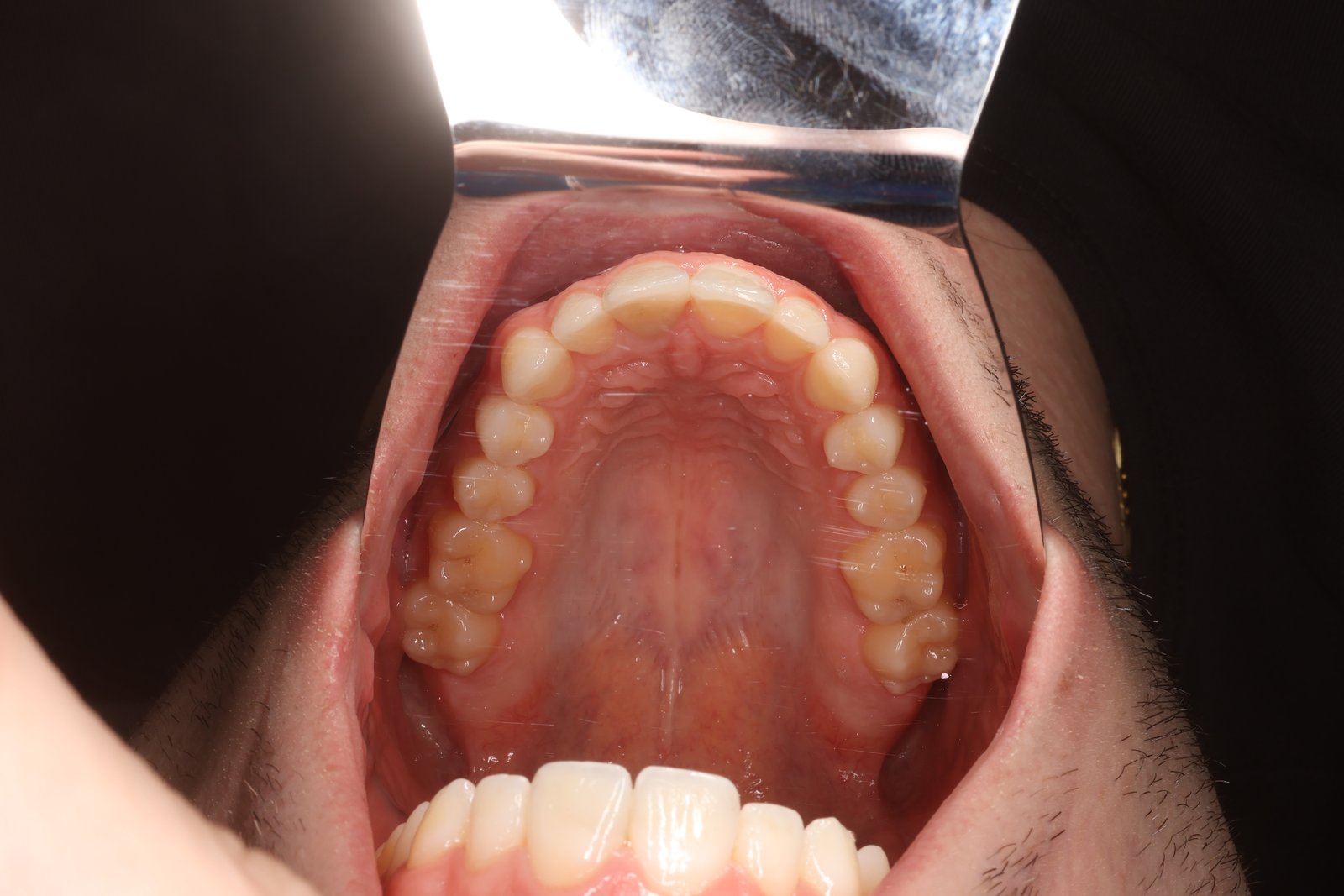
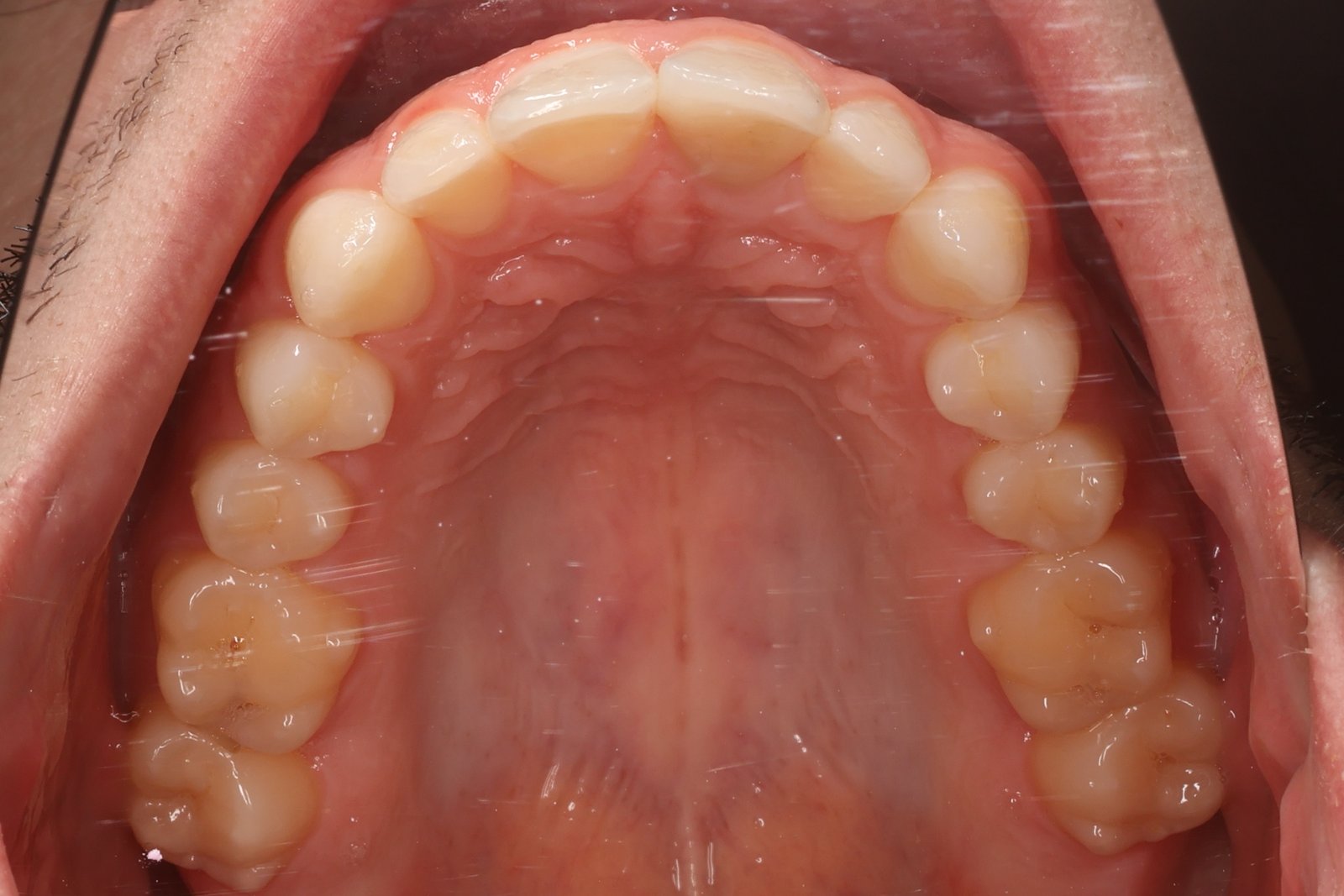
The same photo. Ready for patient records.

Start with the original photo, then drag to reveal the SmileCrop result.

After processing Before processing Original photo SmileCrop result

No retouching. Just automatic crop, straightening, and correct orientation.

See the same result on your own photos. 14 days free · no credit card · photos stay on your computer
Try SmileCrop free
Numbers that speak for themselves

Desktop application — photos are processed locally on your computer; internet is used for licensing and updates.

The 30–60 minute estimate is based on our own clinical use with approximately 100–200 photos per day. Actual savings depend on photo volume and the existing workflow.

How it works

Finish your work in 1/5th the time

One initial setup. One QR frame. Then automation.

  1. 01

    Scan the patient QR code

    Generate a QR code for each patient. Scan it once at the start of the session. No retyping names — which helps prevent transcription errors and patient mix-ups.

  2. 02

    Take photos as usual

    Use your current camera and take the same standard series as before. No new photography equipment is required.

  3. 03

    SmileCrop does the rest

    SmileCrop detects the supported photo types, crops it, and sorts it into the patient folder. Set up naming once — then everything is automatic.

YC Your camera

IMG_4521.JPG, IMG_4522.JPG, IMG_4523.JPG — 19 unprocessed photos, wrong rotations, no patient ID.

SC SmileCrop outputs

Smith_John / 2026-04-20 / frontal.jpg, right-lateral.jpg, left-lateral.jpg, occlusal-upper.jpg, occlusal-lower.jpg, smile.jpg … all cropped and rotated to a standard dental documentation layout.

i

In our own clinical use, SmileCrop automatically handles around 93% of the photos in the dataset used there. Unusual shots or non-standard angles may still need a quick manual adjustment. Results at another clinic may vary with image quality, photo types, and capture technique.

Complete workflow

More than automatic cropping

SmileCrop supports the full workflow — from importing photos to manual review, backup, and final patient folders.

Automatic processing from a folder or SD card

SmileCrop can watch selected folders or SD cards and start processing automatically.

Manual review right in the app

Flagged or non-standard photos can be adjusted directly inside SmileCrop.

Backup and safe return to the original

Original photos can be automatically backed up and used when edits need to be corrected.

Workflow tailored to your clinic

Photo order, names, and folder structure can be customized to your clinic.

Manual review

You always have the final say

When SmileCrop isn't sure, it flags the photo — and you fix it in two clicks.

SmileCrop after processing — 18 saved, 1 flagged for review

Uncertain photos don't get lost. SmileCrop flags and lists them — here 18 photos saved automatically, 1 flagged for review.

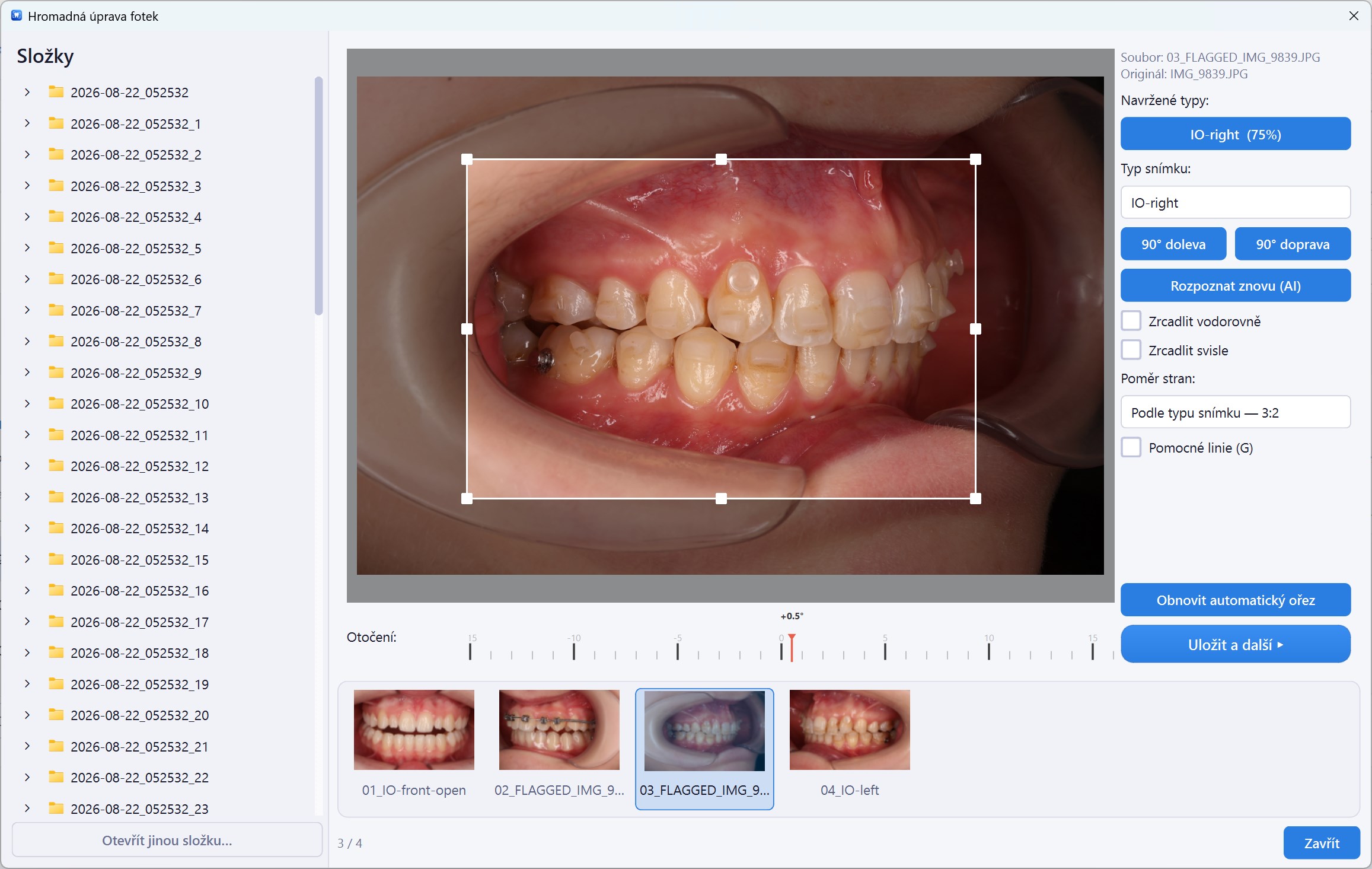
SmileCrop editor — suggested crop, rotation and photo type

Double-click opens the editor. Crop, rotation, and photo type come pre-suggested — adjust and save. Done in seconds.

Free companion tool

SmileQR — reliable patient identification, every time

Every photo assigned to the correct patient — automatically.
Scan the QR once at the start of the session. Helps prevent patient mix-ups and avoids manual name-entry errors. Generate codes at reception or any clinic PC — no SmileCrop license needed.

"I created SmileCrop because we were spending hours in the practice sorting and cropping photos. I wanted to solve this problem once and for all."

MDDr. Michal Hasala orthodontist & developer of SmileCrop

Designed by an orthodontist and used in day-to-day clinical practice.

Pricing

Start saving hours every week

SmileCrop

Monthly subscription · single computer

$49 / month

Tax calculated at checkout

Payback depends on photo volume and the existing workflow.

  • Full auto-crop & auto-rotate
  • 17 dental photo types detected
  • Per-patient session folders
  • Processes photos offline; License validates periodically
  • Updates & support included
  • Single-device license
Buy — monthly

Free 14-day Trial Period before purchase · No card required

Annual plan

SmileCrop

Annual subscription · single computer

$499 / year

Tax calculated at checkout

Save approximately 10%

Payback depends on photo volume and the existing workflow.

  • Full auto-crop & auto-rotate
  • 17 dental photo types detected
  • Per-patient session folders
  • Processes photos offline; License validates periodically
  • Updates & support included
  • Single-device license
Buy — annual

Free 14-day Trial Period before purchase · No card required

Enterprise

Multiple workstations or custom workflows.

Custom contact us
  • Multi-device licensing
  • Volume pricing
  • Priority support
  • Custom photo set & detection model
Contact us

We'll reply within one business day.

Good to know

Frequently asked questions

How does the purchase work?

1. Download and install SmileCrop — free.
2. Open the app — a 14-day free trial starts automatically. No credit card.
3. Purchase a license — any time during or after the trial.
4. You receive a license key by email.
5. Enter the key in the app — it activates immediately.
The license is tied to a single device.

Can I cancel my subscription?

Yes. You can cancel anytime — from the customer portal or by writing to support@smilecrop.app. Access stays active until the end of the current paid period. No hidden fees.

Will the price change in the future?

The price may be adjusted for new users in the future. Existing subscribers keep their price for the duration of their active subscription.

How long does setup take?

Setup takes only a few minutes. Download SmileCrop, install, and launch. The workflow is straightforward — your clinic can start processing photos almost immediately.

How does the clinic workflow change?

First, configure SmileCrop once for your clinic's folders, names, and photo order. Before each session, photograph the patient's QR code as the first frame. The standard orthodontic photo sequence itself stays the same; SmileCrop handles the processing afterwards.

Why QR instead of OCR or manual entry?

QR provides a reliable way to assign photos to the correct patient. It helps reduce typos and name mix-ups, especially when two patients share a surname.

What if we take photos differently?

SmileCrop works best with the standard clinical setup. Have a custom photo set? Contact us — the detection model can be adapted to your samples.

Is photo recognition 100% accurate?

Not always. In our own clinical use, the model automatically processes around 93% of the photos in the dataset used there. The remaining images—typically unusual shots or non-standard angles—need manual adjustment. Results at another clinic may vary with image quality and capture technique.

What if SmileCrop does not crop a photo correctly?

You can quickly adjust the photo directly in the app. If backup is enabled, SmileCrop can also work from the original image.

Can SmileCrop process photos automatically?

Yes. It can watch selected folders or SD cards and start processing when new photos appear.

Can file names and folder structure be customized?

Yes. File names, folders, and photo order can be customized to match your clinic's workflow.

What hardware do I need?

The minimum is a 64-bit 4-core Intel/AMD processor, 8 GB RAM, 8 GB free storage, and Windows 10 version 1809. A supported 64-bit Windows 11 system, 16 GB RAM, and an SSD are recommended. An NVIDIA CUDA GPU is optional. See the System Requirements.

Is the license tied to a specific computer?

Yes. Each license is assigned to a single computer — the one where photo processing is performed. The QR tool is free on any other computer.

What if we use multiple computers?

You only need SmileCrop on the computer where photos are actually processed — typically one computer per clinic. QR code generation runs free on any other computer. For clinics with multiple processing workstations, we offer a custom setup — contact us at support@smilecrop.app.

What if our computer is replaced?

No problem. Contact us and we'll reset your license so you can activate it on the new device.

Is patient data secure?

Patient photographs and names are processed locally and are not uploaded by SmileCrop for AI processing. Only the necessary License and technical data described in the Privacy Policy are transmitted for activation, periodic License validation, and updates.

Does it work offline?

Photo processing is local and does not require a permanent connection. Internet is required to start the Trial Period, activate, update, and periodically validate the License. After successful validation, the full paid License remains available offline for up to 72 hours and then temporarily enters limited mode until validated again. See the System Requirements.

Which operating systems are supported?

64-bit Windows on x64 Intel/AMD; Windows 10 version 1809 is the technical minimum and a supported Windows 11 version is recommended. ARM64, 32-bit Windows, macOS, and Linux are not natively supported. See the full compatibility information.

Is SmileCrop a medical device?

No. SmileCrop is a workflow automation and image-processing tool for dental practices. It does not perform diagnosis, provide clinical recommendations, evaluate treatment, or make treatment decisions. All clinical decisions remain the responsibility of the healthcare professional.

Get started today

Start saving hours
every week.

14-day full version free. No credit card required. No commitment.

Windows 10/11 · Mac coming soon · For dental clinics